How to remove a specific page restriction
The Issue Publisher offers steps for adding or setting the restrictions of a Confluence page out of the box. But there is no such step for removing a specific restriction from a page. To achieve this you can use a combination of the Send web request and Set page restrictions steps.
In our example we want to remove a Confluence group from the restrictions of a page. Afterwards users from this group wont be able to view or edit the page anymore.
Add the user inputs
We use an operation with a manual trigger and we let the user select the page and enter the name of a Confluence group. But you could also get these values from other sources like custom fields. In that case you can skip this part.
Add the user input for the Confluence page to your operation:
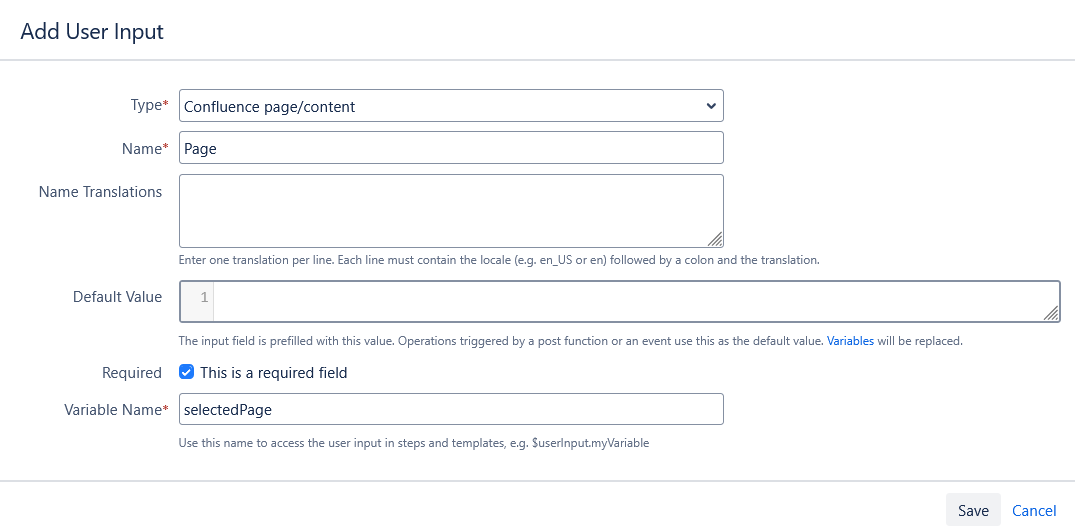
You need to remember the variable name for later, in our example: selectedPage
Add the user input for the Confluence group to your operation:
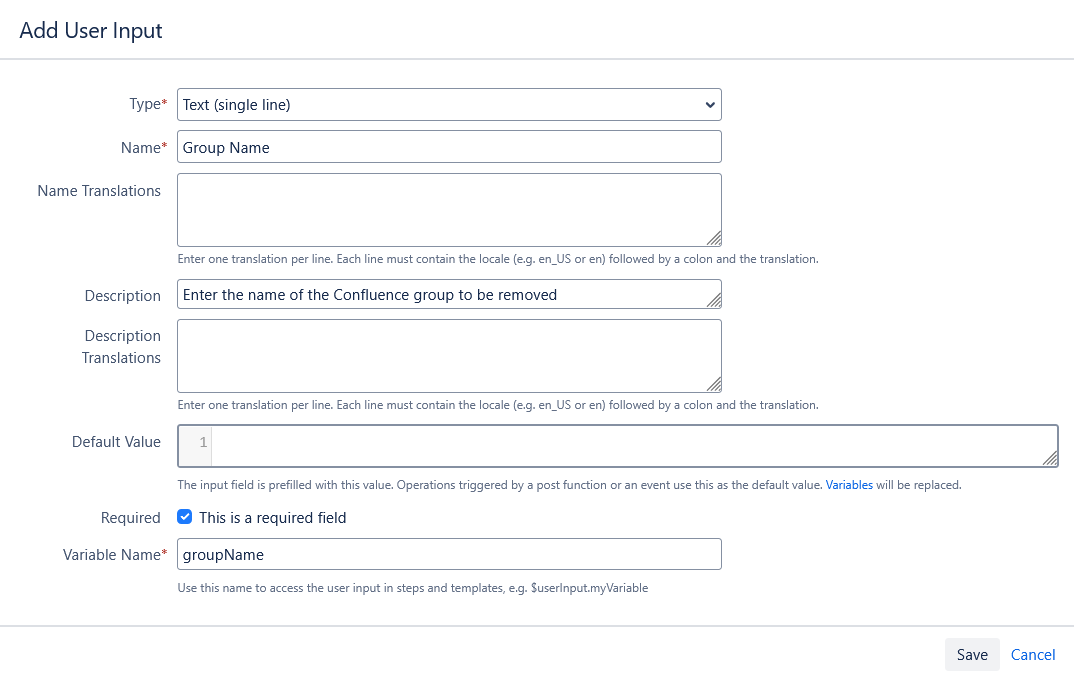
Again, you need to remember the variable name for later, in our example: groupName
Add the template
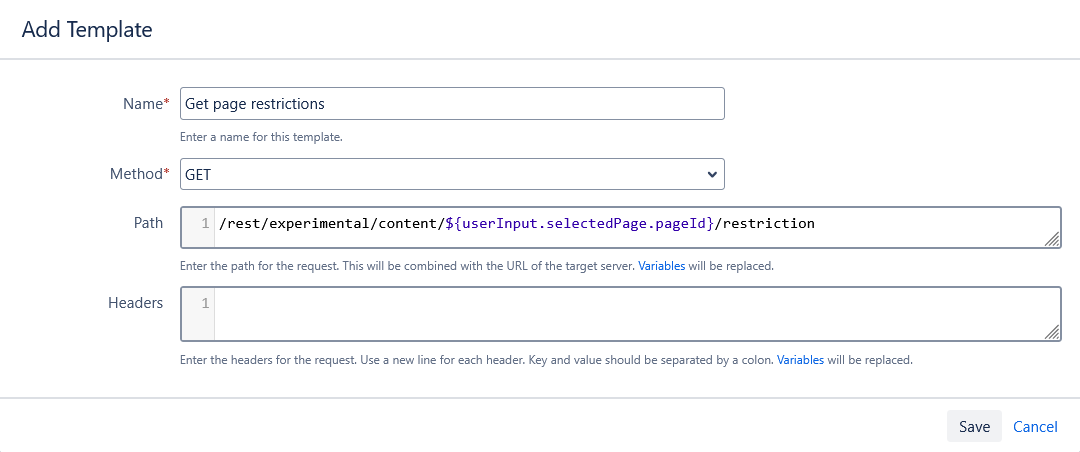
To get the current restrictions from the page we need to create a new Web request template first:
| Name | Get page restrictions |
|---|---|
| Method | GET |
| Path | /rest/experimental/content/${userInput.selectedPage.pageId}/restriction |
If you don't have a user input for the page and the page ID is stored in a custom field instead, you can use e.g.: /rest/experimental/content/$!fieldHelper.getValueAsString("Page ID")/restriction
If you are targeting Confluence Cloud, you should replace experimental in the path with api, e.g.: /rest/api/content/${userInput.selectedPage.pageId}/restriction
Add the steps
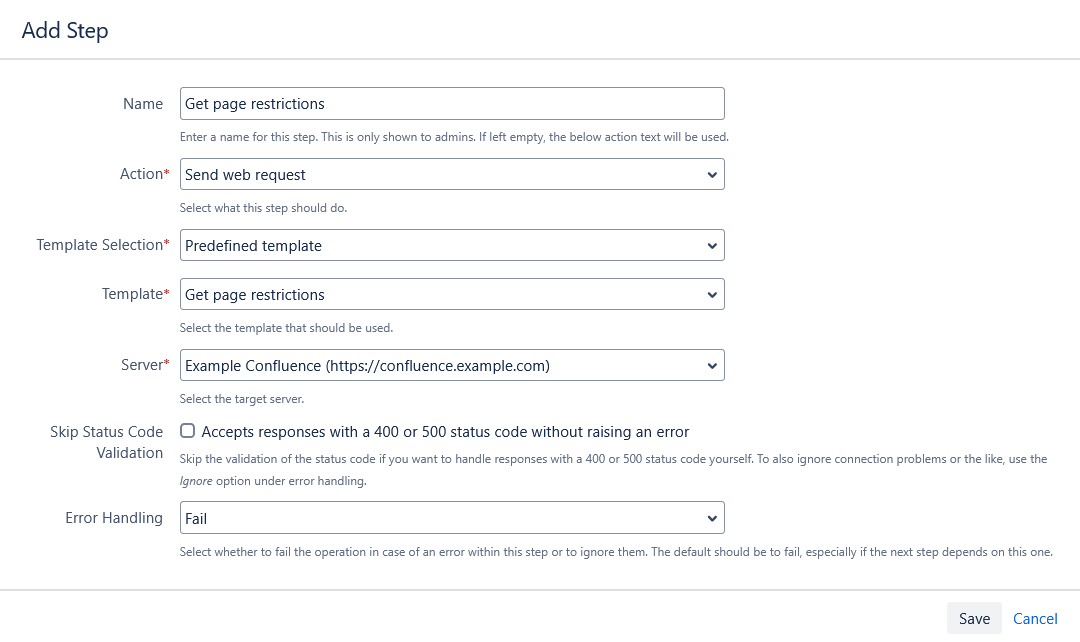
Now you can add the first step to get the current restrictions from the page. Select the action Send web request and select the template you've just created.
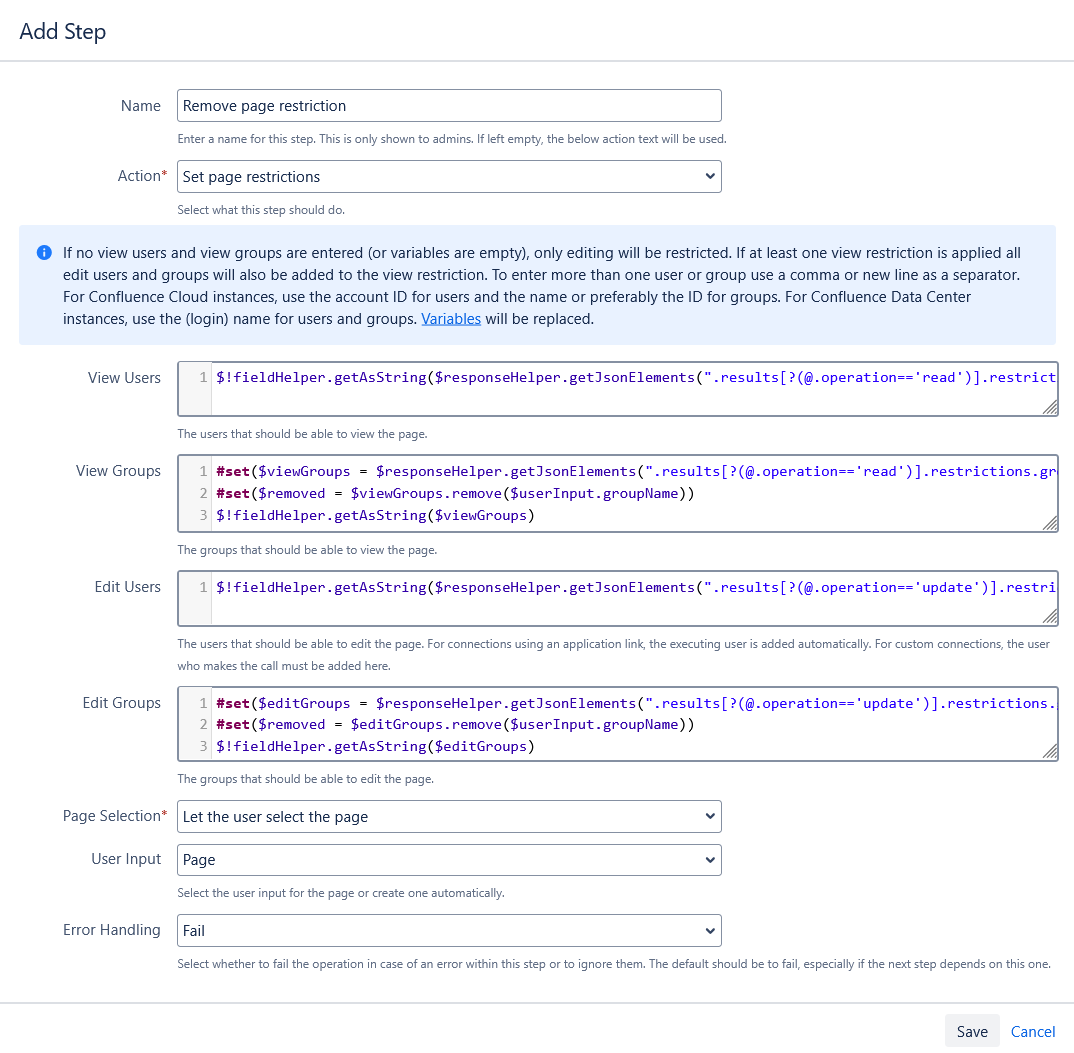
For the second step enter the following:
| Name | Remove page restriction |
|---|---|
| Action | Set page restrictions |
$!fieldHelper.getAsString($responseHelper.getJsonElements(".results[?(@.operation=='read')].restrictions.user.results[*].username"))
| |
#set($viewGroups = $responseHelper.getJsonElements(".results[?(@.operation=='read')].restrictions.group.results[*].name"))
#set($removed = $viewGroups.remove($userInput.groupName))
$!fieldHelper.getAsString($viewGroups)
| |
| Edit Users | $!fieldHelper.getAsString($responseHelper.getJsonElements(".results[?(@.operation=='update')].restrictions.user.results[*].username"))
|
| Edit Groups | #set($editGroups = $responseHelper.getJsonElements(".results[?(@.operation=='update')].restrictions.group.results[*].name"))
#set($removed = $editGroups.remove($userInput.groupName))
$!fieldHelper.getAsString($editGroups)
|
If you have a user input for the page, you can select Let the user select the page under Page Selection and then your user input. Otherwise, select Predefined page under Page Selection and then enter the appropriate variables in the Page input, e.g. $!fieldHelper.getValueAsString("Page ID")
Complete operation
The complete operation should look like this on the Manage Operations page:

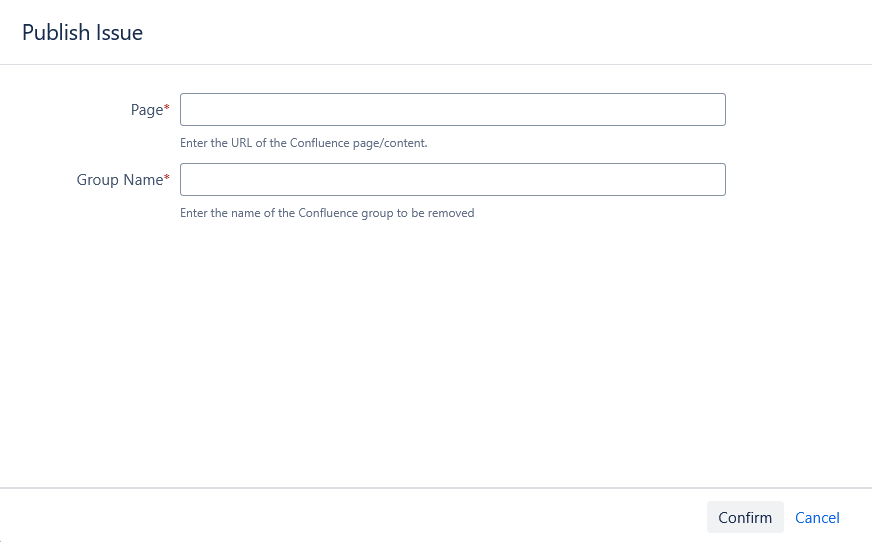
If you've created user inputs for the page and group name, the user who performs the operation will see this: